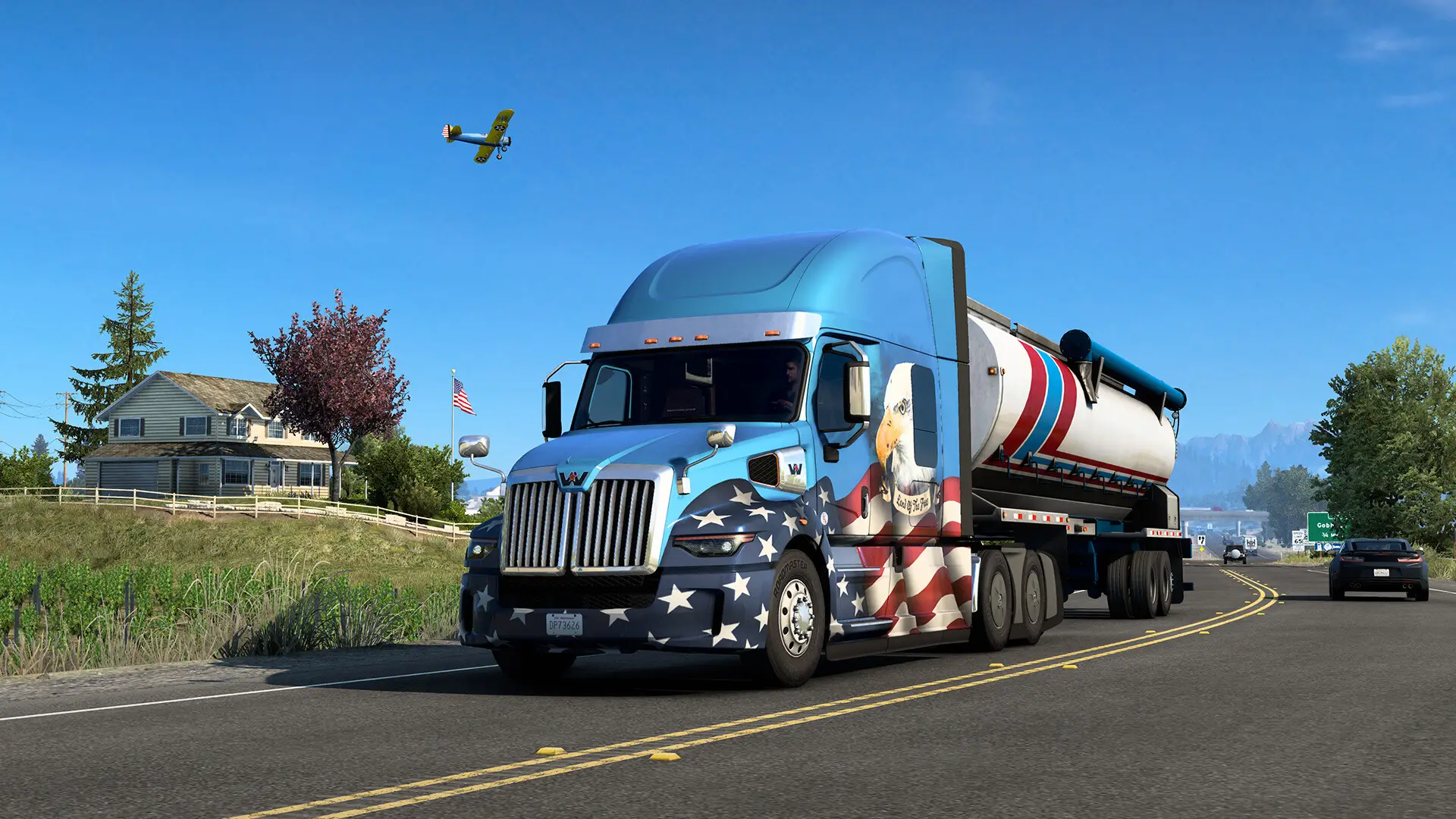
To upload mods to your American Truck Simulator server, you first need to activate them locally. Here's how to activate, export, and upload the necessary files to run mods on your new ATS server.
Locally Enabling and Exporting Mods for an ATS Server
If you haven't already, you will need to enable the American Truck Simulator in-game console.
- Open ATS and under
Mods, select the mods you'd like to activate, then clickConfirm Changes. - Load into a career game, and then open the console with
~. - Type
export_server_packagesand pressEnter. - Find the exported files by pressing
Windows Key + Rand entering this:%USERPROFILE%\Documents\American Truck Simulator - Make a copy of
server_packages.datandserver_packages.sii, then proceed to the steps below.
Uploading Mods to Your ATS Server
Now that you've enabled and locally exported your server_packages.dat and server_packages.sii files, they just need to be uploaded to your ATS server. Here's how it's done:
- Access the GhostCap Panel and
Stopyour ATS server. - Go to
File Manager. - Inside
.local/share/American Truck Simulator, delete the existingserver_packages.datandserver_packages.siifiles. - Upload your exported
server_packages.datandserver_packages.sii.
.local
└── share
    └── American-Truck-Simulator
        ├── server_packages.dat   ← Uploaded version
        ├── server_packages.sii   ← Uploaded version
        └── ...
Startyour server.