This guide covers how to install mods on your Project Zomboid server. If you're looking to further customize your server outside of basic gameplay settings, modding is a fantastic way to do so.
Many mods have NOT been updated for B42 yet. Check each mod's Workshop page for B42 support before installing.
Steam Workshop items are downloaded when the server starts, so changes apply after saving and restarting your server.
Getting Mod And Steam Workshop IDs
You will need to know how to get a Workshop ID and Mod ID for each mod you want to install. You can view all the Project Zomboid mods here.
Once you find the mod you want, you need to note the following. Let's use this mod for example.
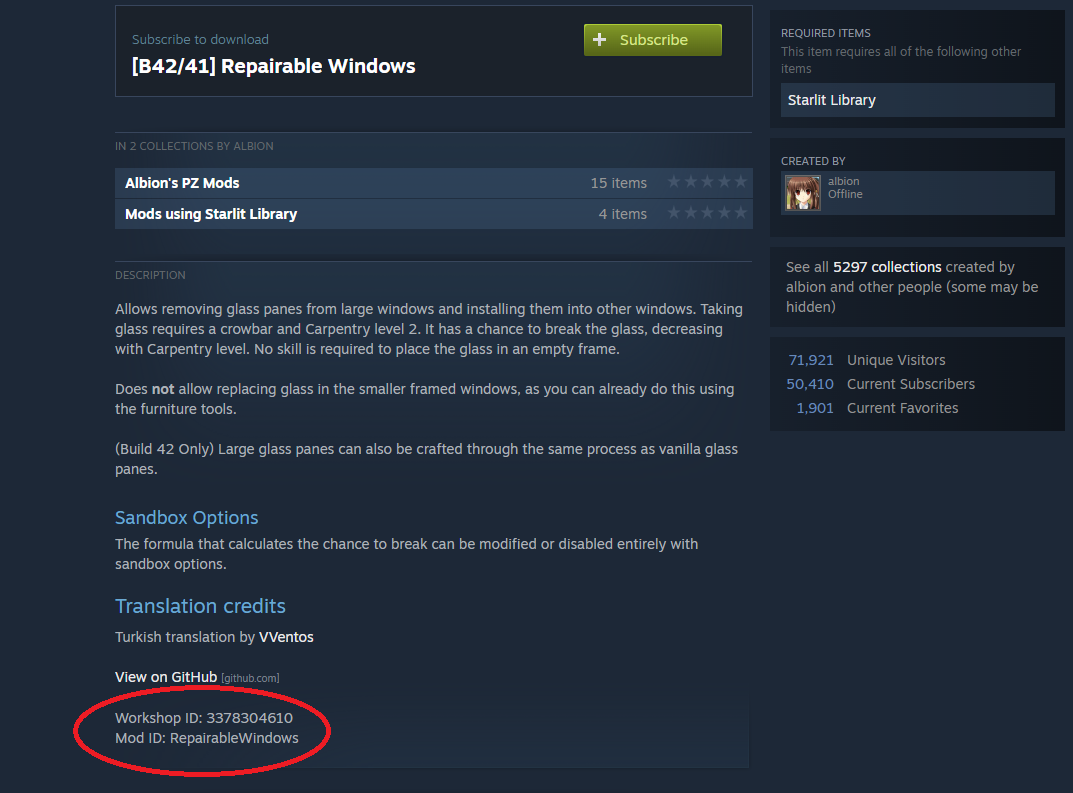
As you can see from the details at the bottom of the Steam Workshop page, this mod's Workshop ID is 3378304610 with its Mod ID being RepairableWindows.
Installing Mods
B42 is the current stable build of Project Zomboid, so use these steps unless your server runs an older build.
- Access the GhostCap Panel and
Stopyour server. - In the sidebar, go to
File Manager. - Navigate to and open
.cache/Server/pzserver.ini. - Set
DoLuaChecksum=false. - Add the Workshop ID to
WorkshopItemsusing semicolons:WorkshopItems=3378304610;2849467715 - Add the Mod ID to
Modsusing a backslash before each Mod ID:Mods=\RepairableWindows;\WaterGoesBad - Click
SaveandStartyour server.
The examples above use the mods RepairableWindows and Water Goes Bad.
To install multiple mods you must separate each Workshop ID and Mod ID with a semicolon, and on B42 each Mod ID needs a leading backslash, for example \RepairableWindows;\WaterGoesBad as seen above.
If a mod fails to load on B42 with a FileNotFoundException in the console, it is usually a file casing issue. See our Fix Mod Case Sensitivity guide to resolve it.
Installing Mods On B41 And Older Builds
If your server runs B41 or an older build, use these steps instead. Mod IDs do not use a leading backslash on older builds, and DoLuaChecksum can stay on its default setting.
- Access the GhostCap Panel and
Stopyour server. - In the sidebar, go to
File Manager. - Navigate to and open
.cache/Server/pzserver.ini. - Add the Workshop ID to
WorkshopItems. - Add the Mod ID to
Mods. - Once finished, click
SaveandStartyour server.
Here's the same example on B41, with no backslashes in Mods:
WorkshopItems=3378304610;2849467715

Mods=RepairableWindows;WaterGoesBad