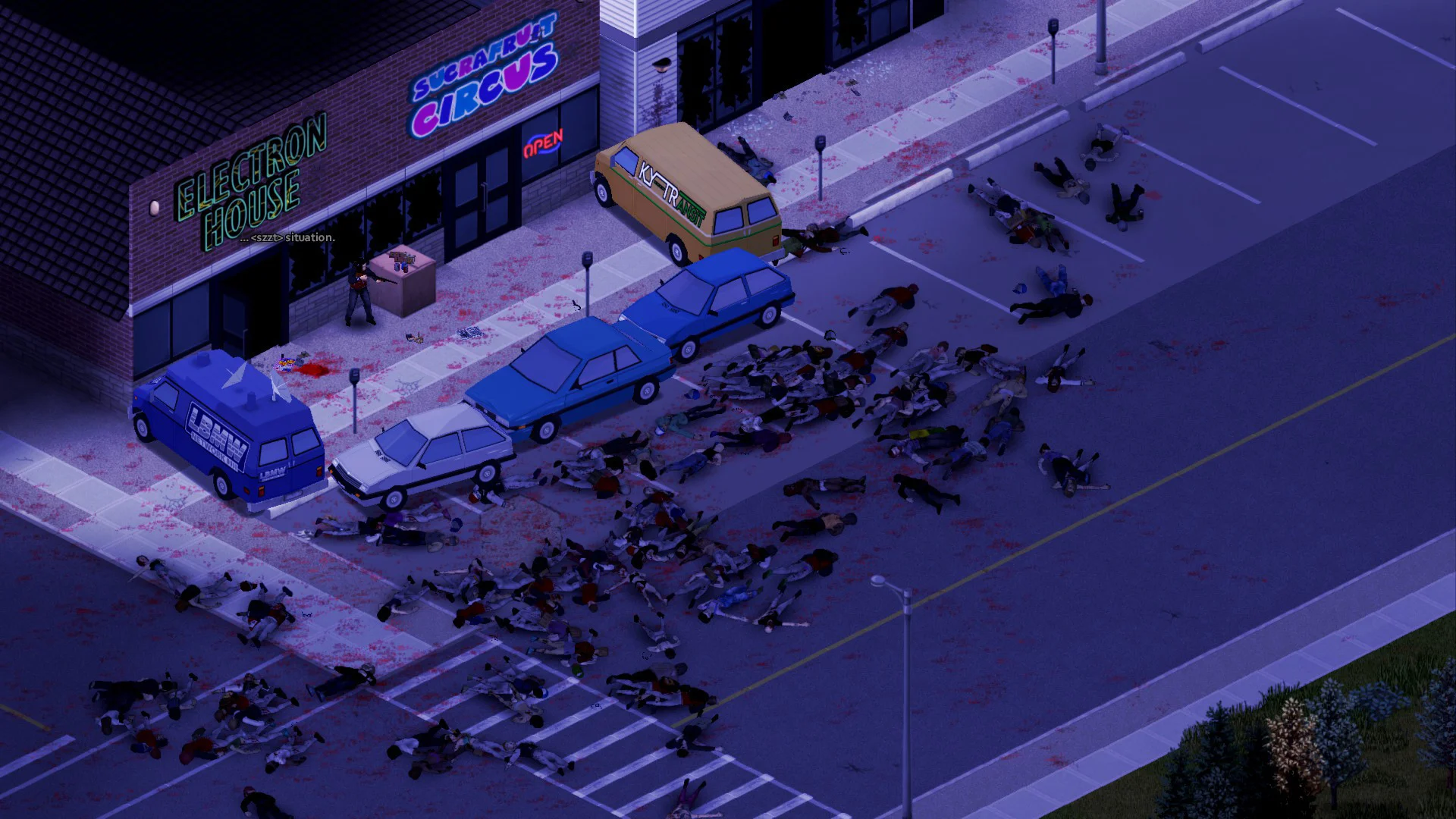
This guide covers how to set up a custom welcome message on your Project Zomboid server.
Setting A Welcome Message
- Access the GhostCap Panel and
Stopyour server. - In the sidebar, go to
Server Options. - Under
Basic, editServer Welcome Messageand enter your custom message. Startyour server.
Formatting Your Message
You can use HTML formatting in your welcome message to add colors and new lines to your message:
- Colors:
<RGB:1,0,0>for red,<RGB:0,1,0>for green, and<RGB:0,0,1>for blue - Line breaks:
<LINE>to create new lines
For example:
<RGB:0,0,1> Welcome to our PZ server! <LINE> <RGB:0,1,0> Have fun surviving! Zombies are coming!