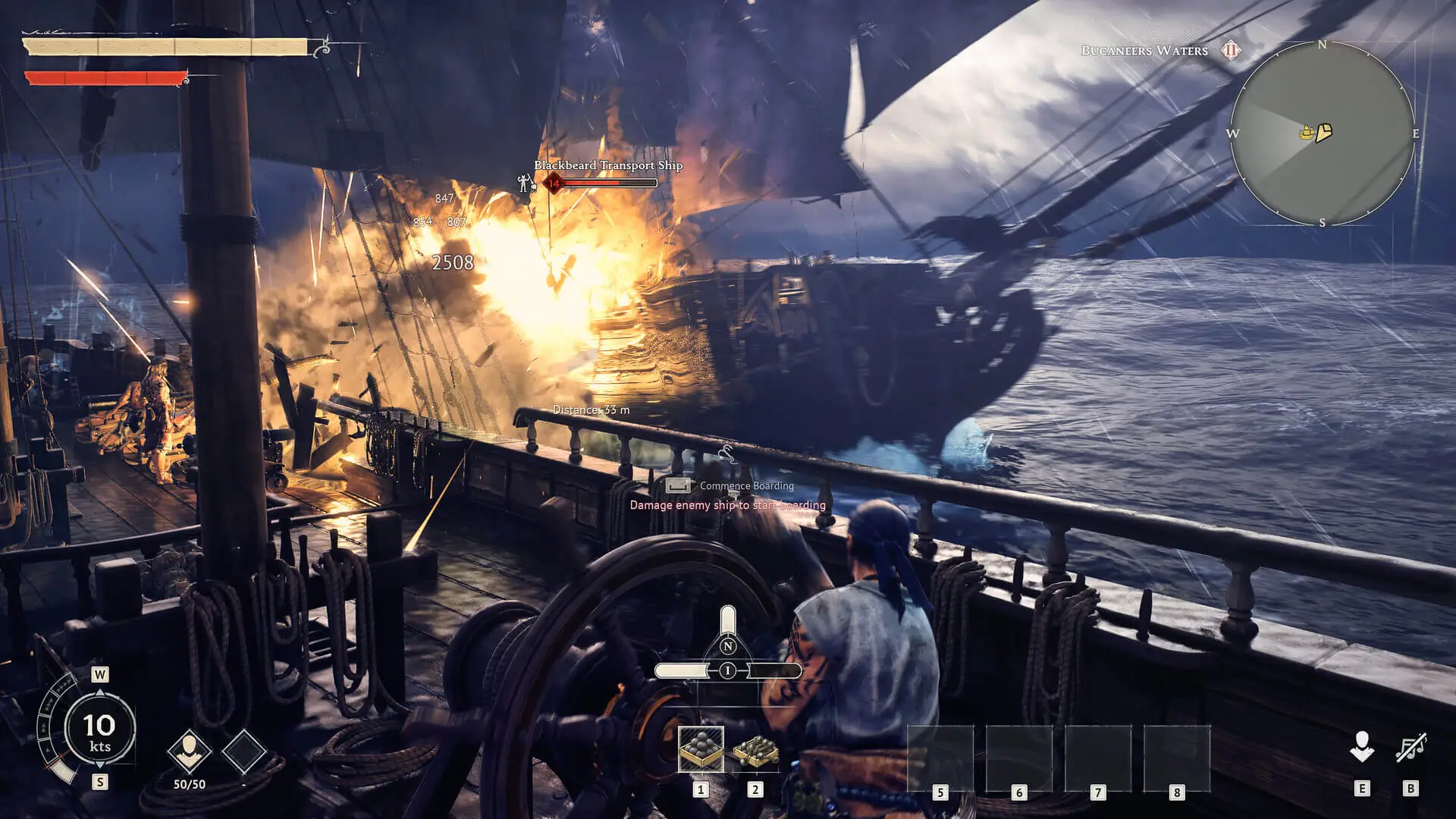
This guide will walk you through uploading an existing world save to your Windrose server.
Danger
Always create a backup of your save files before attempting to move or copy them.
Locating Your Existing Windrose Save
Windrose saves each world in a folder named with its WorldID (a long alphanumeric string). You will need this folder name later.
- Press
Windows Key + Rand enter this:%LOCALAPPDATA%\R5\Saved\SaveProfiles - Open the folder named with your Steam ID, then navigate to
RocksDB_v2\[GameVersion]\Worlds\. - Note down the
WorldIDfolder name of the world you want to upload — you will need this later.
%LOCALAPPDATA%
└── R5
    └── Saved
        └── SaveProfiles
            └── [SteamID]                                    (Example: 76561198106341655)
                └── RocksDB_v2
                    └── [GameVersion]
                        └── Worlds
                            └── 04A4F36F41134855B3AD6FFA08FD11A1   ← Your WorldID
Uploading Your Save To Your Server
- Log in to the GhostCap Panel and
Stopyour Windrose server. - Using SFTP, upload your
WorldIDfolder to/R5/Saved/SaveProfiles/Default/RocksDB/[GameVersion]/Worlds/. - In
/R5/Saved/SaveProfiles/Default/, rename theRocksDB_0folder toRocksDB. - In the sidebar, go to
File Managerand open/R5/ServerDescription.json. - Update the
WorldIslandIdfield to match your uploaded folder name:"WorldIslandId": "04A4F36F41134855B3AD6FFA08FD11A1" - Save the file and
Startyour server.
R5
└── Saved
    └── SaveProfiles
        └── Default
            └── RocksDB
                └── [GameVersion]
                    └── Worlds
                        └── 04A4F36F41134855B3AD6FFA08FD11A1   ← Your uploaded world!