
![Steam Game Recording [ShadowPlay and ReLive Alternative]](/images/steam-game-recording-steam-recording-beta-what-you-need.jpg)
Valve’s Steam Game Recording is a built-in feature that makes capturing your best gaming moments easier than ever. Originally launched as a beta in 2024, Steam Game Recording officially left beta in November 2024 and is now available to all Steam users. Whether you’re a seasoned pro or just starting, this feature simplifies the process of recording gameplay, ensuring you never miss a highlight again.
How To Enable Steam Game Recording
Steam Game Recording is now a stable feature available to all users — no beta opt-in required.
-
Open Steam and navigate to Settings.
-
Click on the Game Recording tab.
-
Toggle the recording feature on and configure your preferences.
How To Use Steam Game Recording
To enable automatic recording, go to the new Game Recording tab in Steam's settings and toggle the feature on. This will allow Steam to capture your gameplay automatically. While the feature works with all Steam-based games, Counter-Strike 2 (CS2) is specially optimized by Valve for better recording quality. For more on CS2's performance, check its system requirements.
Accessing Recordings
During gameplay, press Shift + Tab to open the Steam overlay. Here, you can view your recording timeline. After finishing your game session, you can access and manage your recordings via the Screenshot Manager.
Timeline Navigation
The timeline in the Steam overlay is color-coded to differentiate between in-game actions and menu navigation. You can use markers to jump to specific highlights such as round starts, significant kills, or bomb plants. Additionally, you can add custom markers during gameplay by pressing CTRL + F12 to mark memorable moments for easy navigation later.
How Is The Recording Quality
The default setting is High Preset, offering 1080p YouTube-quality recordings. For better clarity, especially in high-motion scenes, switch to the Highest Preset. Lower presets, like Low and Very Low, are not recommended due to a significant drop in quality.
By default, recordings are set to a 2-hour limit but can be extended up to 9999 minutes. For durability, consider using a traditional hard drive to avoid excessive wear on SSDs.
Will Steam Recording Lag Your Game?
Steam uses GPU hardware encoding by default, ensuring minimal impact on performance. This setting leverages your AMD or Nvidia graphics card’s capabilities. Avoid CPU encoding unless necessary, as it may significantly slow down your game. It should be no different to ShadowPlay or ReLive in terms of performance loss.
Steam Game Recording Minimum Requirements
The recording feature is designed to work on most modern PCs. Even low-end systems should handle basic recordings. The Steam Deck also supports recordings well, despite some performance issues in high-demand games like CS2.
Why Should You Use Steam Recording?
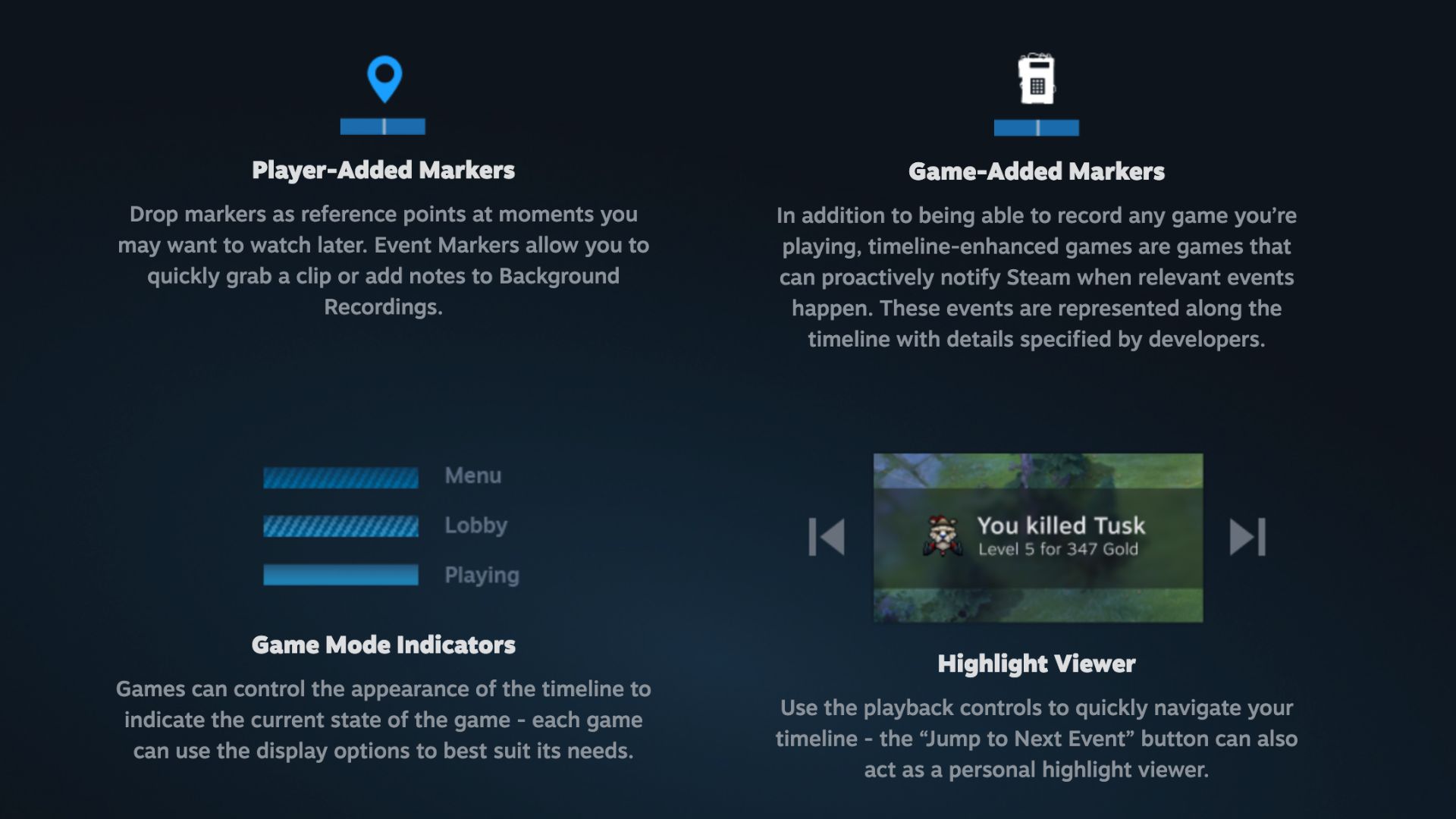
Advanced Markers
The game recording beta automatically marks key moments such as kills, deaths, and bomb plants. This feature makes it easy to navigate and edit your gameplay highlights.
Efficient Storage Management
Steam provides efficient storage options, allowing you to manage recordings directly within the platform and choose where to store them, ensuring they don't take up excessive space.
Sharing Made Easy
Sharing your gameplay is simple with Steam. You can export clips as video files to upload to your favorite platforms or share directly with friends.
User-Friendly Interface
The interface is intuitive, making it easy for even new users to get started with game recording. The minimalistic design focuses on functionality, ensuring straightforward navigation and use.
Conclusion
Steam Game Recording is a fantastic addition for gamers of all levels. Its ease of use, coupled with automatic and manual recording features, ensures that capturing your gameplay has never been simpler. Since leaving beta in November 2024, Valve has continued to refine the feature with regular updates.
Whether you’re capturing epic plays to share with friends or just want to keep a personal archive of your gaming achievements, Steam Game Recording is a tool worth using. Open your Steam settings, configure your recording preferences, and dive into a seamless recording experience.
For more detailed insights and updates, keep an eye on GhostCap and our ongoing coverage of the latest gaming features and innovations.